// Key takeaways
- The Content Transfer Tool (CTT) is the most trouble-free asset migration mechanism (usually) but it can hiccup
There are a number of different fully-valid ways to do a content & asset migration from an existing on-prem or AMS-hosted AEM 6.5 instance into AEM as a Cloud Service. And despite the fact that net-new AEM as a Cloud Service Sites implementations are getting increasingly rare (favoring instead new implementations of Edge Delivery Services), it's still VERY relevant to need to migrate all assets into AEM as a Cloud Service. Cutting-edge Document Authoring & Experience Workspace implementations still make ample use of AEM Assets via the Assets Micro-Frontend dialog for selecting assets.
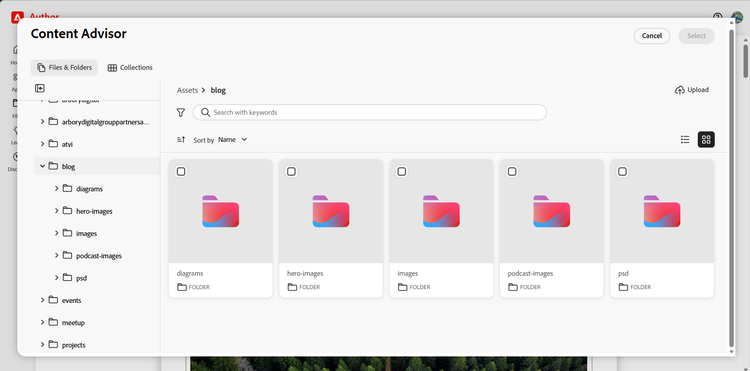
As such, it's rather-relevant still to know how to move assets from a former 6.5 location into AEM as a Cloud Service.
Steps for a Content Transfer Tool Driven Migration
There are two phases associated with using the CTT (mostly-quoting Adobe here):
- Extraction: Extraction refers to extracting desired source content from the legacy AEM 6.5 instance into a temporary area called migration set. A migration set is a cloud storage area provided by Adobe to temporarily store the transferred content between the source AEM instance and the Cloud Service AEM instance.
- Ingestion: Ingestion refers to ingesting content from the migration set into the target Cloud Service instance.
Extraction Phase: Getting Set Up with the Content Transfer Tool
Download the CTT
The first step is getting the Content Transfer Tool downloaded from Adobe and loaded onto your source AEM 6.5 instance.
Grab the most-recent version of the CTT from Adobe Software Distribution here.
Source Environment Setups
Install the package on your source AEM 6.5 instance via the Package Manager.
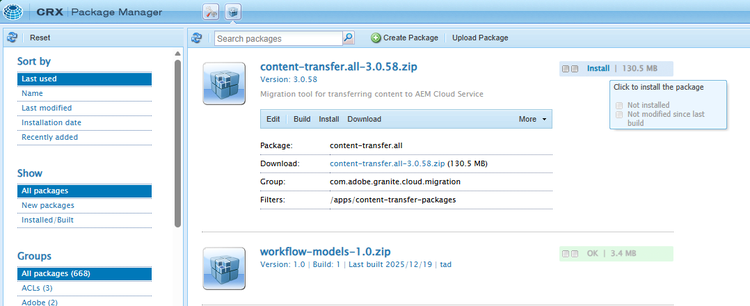
After package installation, navigate to Tools -> Operations and you should see a "CONTENT MIGRATION" card.
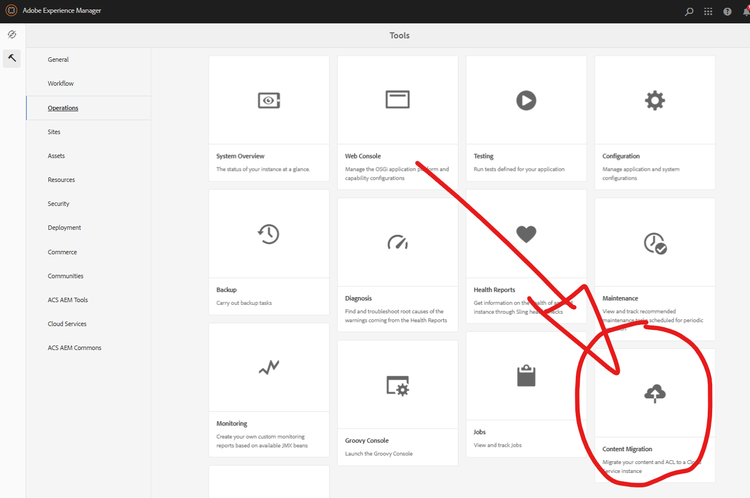
It doesn't say so in the docs, but I've found that this generally won't show up until after an AEM restart.
You'll know it's working if you can click on it and see a screen like the following:
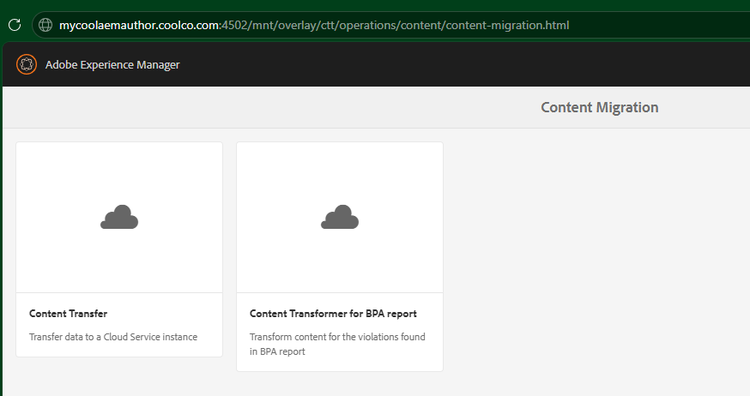
A further note - with source environments that are in very rough shape, I've seen it where the Content Transfer card won't appear in the Operations tab, but the tool is successfully installed. When that's the case, attempt navigating directly to /mnt/overlay/ctt/operations/content/content-migration.html on the source AEM 6.5 server, and it will get you to the CTT successfully.
Note: The source AEM instance may be running behind a firewall where it can only reach certain hosts which have been added to an Allow List. To successfully run an extraction, the following endpoints need to be accessible from the instance that is running AEM:
- The Azure blob storage service:
casstorageprod.blob.core.windows.net
Content Transfer & Content Set Setup
Navigate to the Cloud Acceleration Manager for the account you're working on.
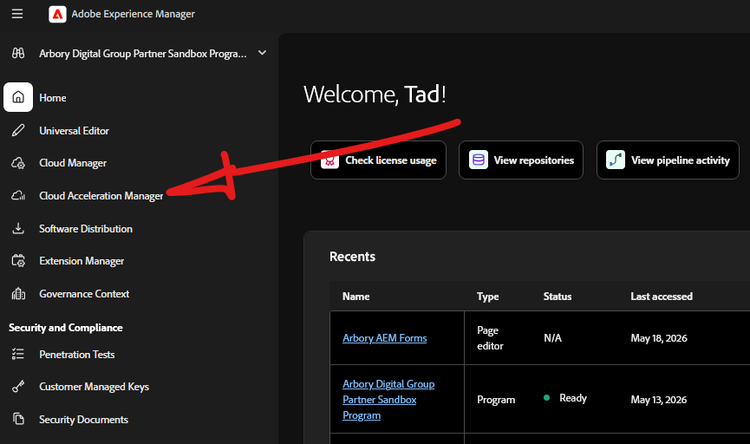
Once in, you'll create a new project (name of it is irrelevant) to start working on the migration. Once there, click on the CONTENT TRANSFER card to get started.
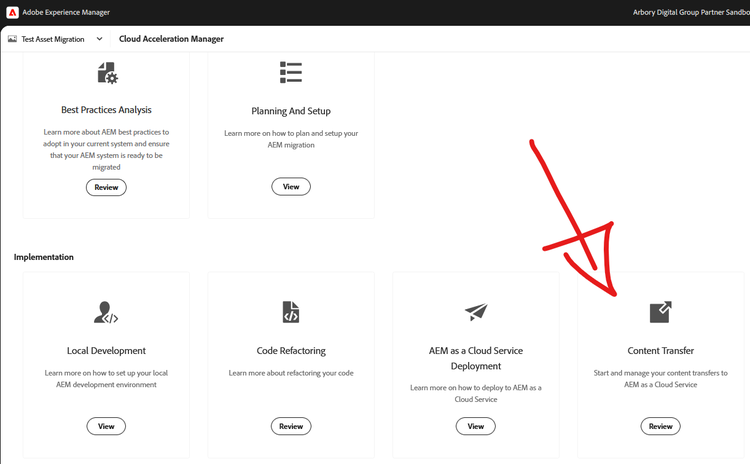
Then
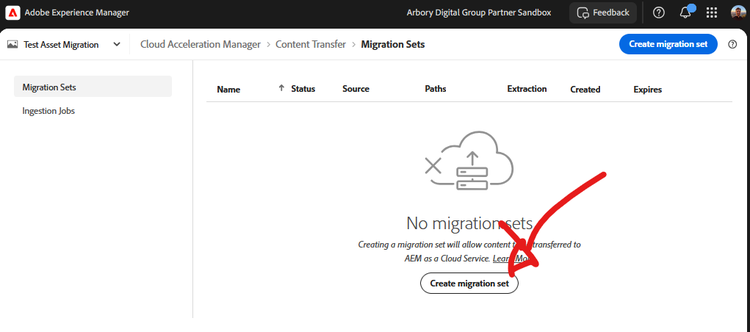
Once there, you're likely ready to rock & roll.
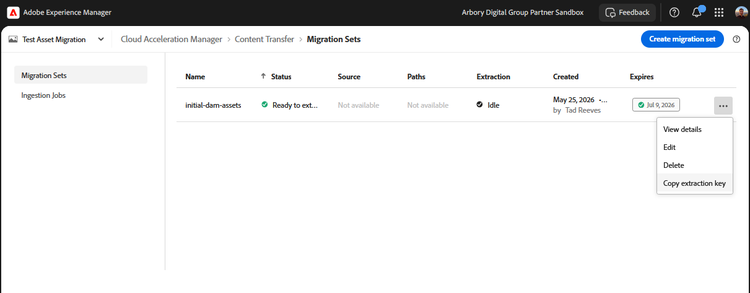
Create a Migration set:
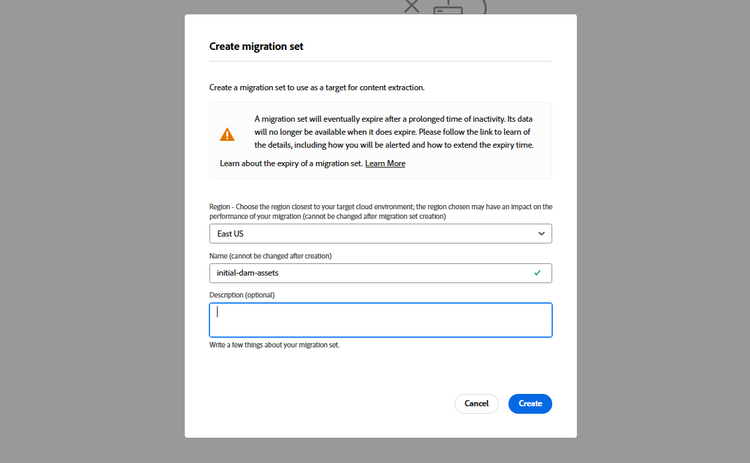
Then copy the extraction key:
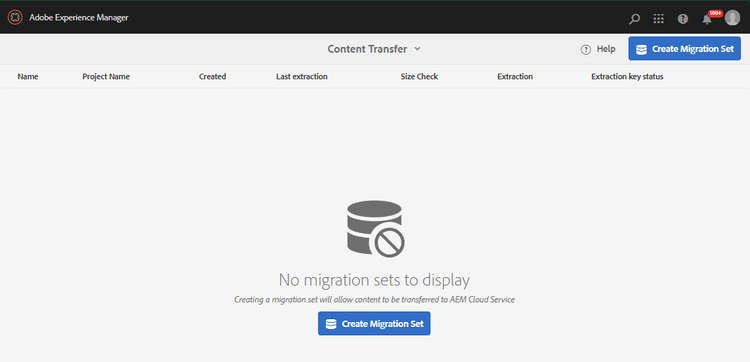
Navigate to your 6.5 instance, click through to Content Transfer and then click Create Migration Set.
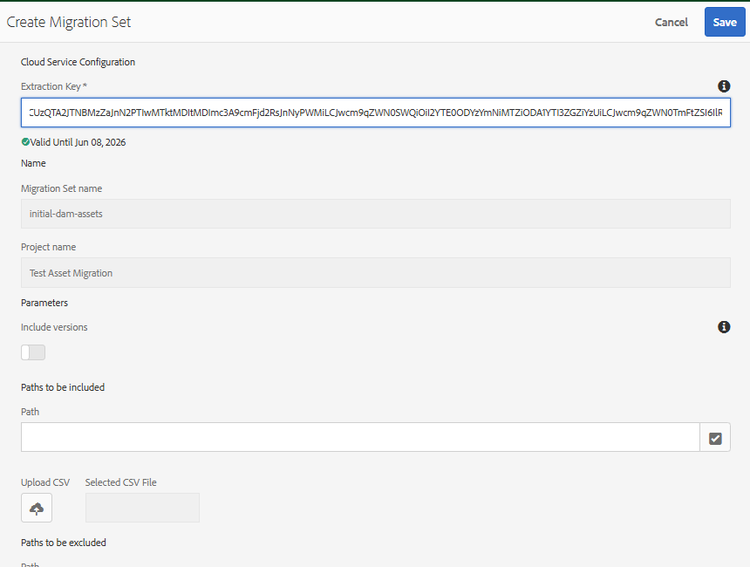
Paste in your extraction key:
Once done, you'll be able to then list out the paths on the source instance that you want to extract. You can either type them in directly or select them from the picker. Just make sure that the user that you're logged-in as has access to all of the assets that you want to migrate.
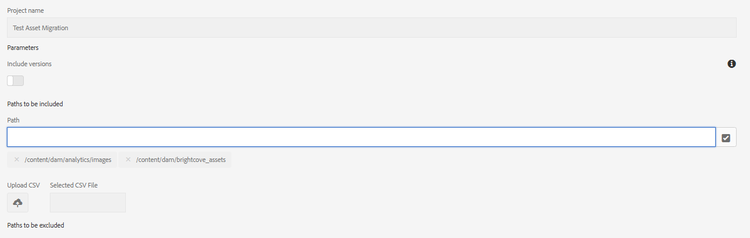
When done, hit SAVE at the top.
The Assets are now ready to extract from AEM 6.5.
Note: there are some paths you CANNOT add to the CTT, as they're immutable in AEM as a Cloud Service.
Following paths are restricted while creating a migration set:
/apps/libs/home/etc(some/etcpaths are allowed to be selected in CTT)
After you've created your migration set, click on the set and click the CHECK SIZE option at the top. This will do a check to see how large (in GB) your migration set is, and whether you have enough free disk space.
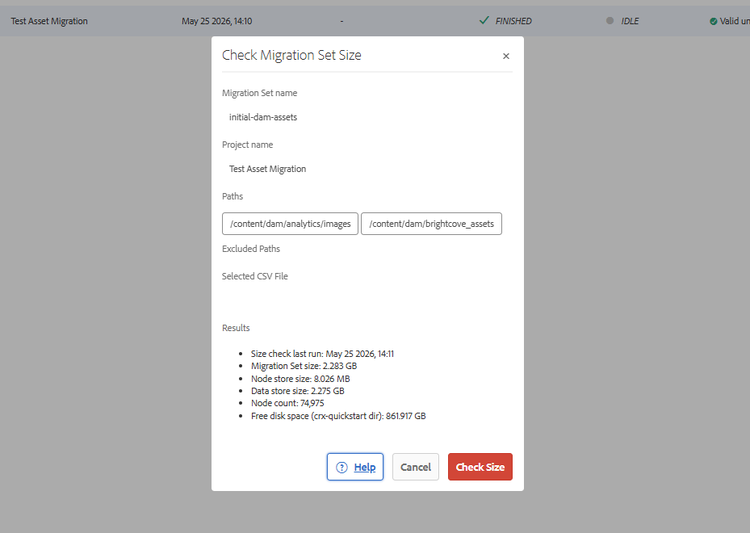
Note that the migration will be staged in /crx-quickstart/cloud-migration/ on-disk before pushing it up to Azure. If disk space is a problem, you may end up needing to do some funny business, like making a symlink of that cloud-migration dir to another drive mount that has more storage, or just do smaller migration sets at a go.
Then, you're ready to kick off the extraction. That's where your first set of fun might begin.
For example, my first run while re-doing this blog post yielded the following in the error logs:
25.05.2026 14:20:17.096 *ERROR* [pool-35-thread-1] com.adobe.granite.skyline.migration.aem.impl.extraction.store.AzureDataStoreProvider Can't access Azure data store service ref : org.apache.jackrabbit.oak.blob.cloud.azure.blobstorage.AzureDataStore
25.05.2026 14:20:19.131 *ERROR* [pool-35-thread-1] com.adobe.granite.skyline.migration.aem.impl.ExtractionApiService Invalid exit code: 1
This was caused by the fact that my test 6.5 instance was from an older AEM 6 installation that still does not have an externalized datastore directory (i.e. just a segmentstore). The solution for this is:
(a) remove (or move away) the crx-quickstart/cloud-migration/azcopy.config file
(b) re-start the extraction, making sure to have the "Pre-copy datastore to staging container" unchecked.
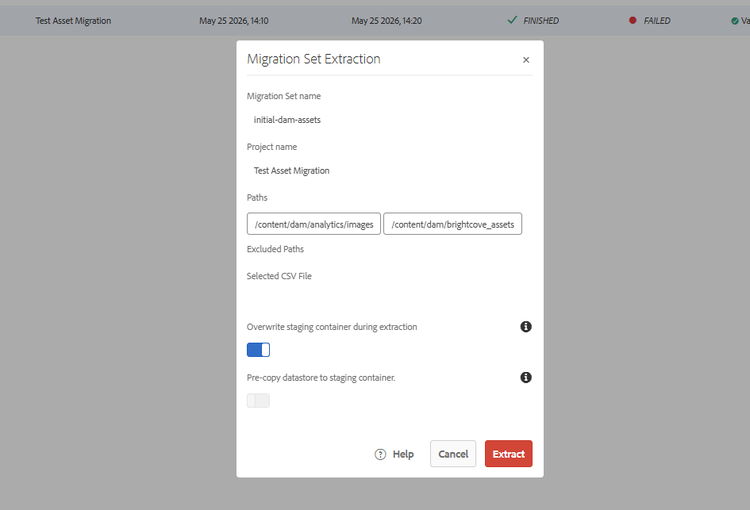
Once you've successfully started, you should see your extraction job as "RUNNING" which it will then do in the background for some time.
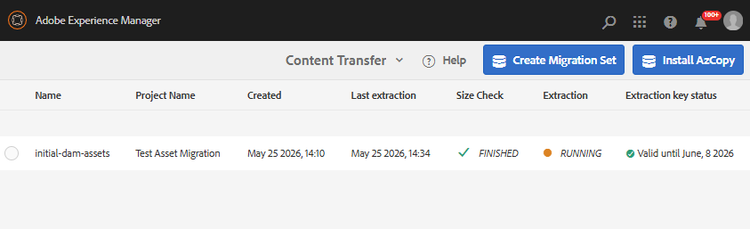
At this point you can log out of the 6.5 author and monitor the extraction & do the remaining steps from the Cloud Acceleration Manager (CAM) screens, which will now show the detailed status as well:
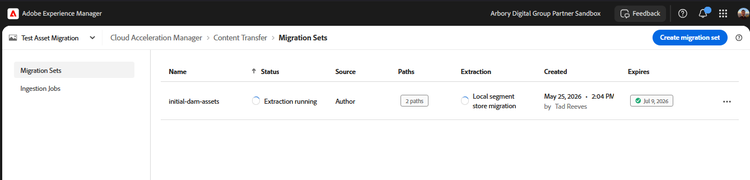
After 5-10 minutes you should start to see your instance punching out data, to stage the migration set in Azure, where it will be able to be ingested into multiple AEM Cloud Service instances.
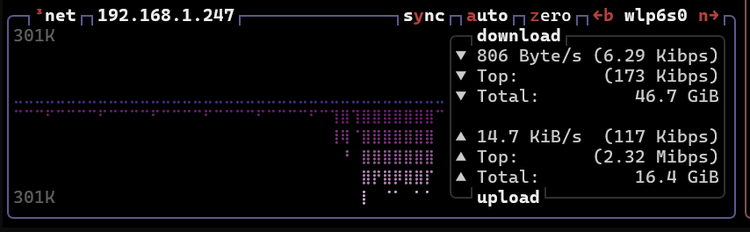
Note as well: I've found that the Content Transfer Tool is quite safe to run on your Prod Author, as it uses very little resources while running. On this test system I'm documenting these steps upon (a linux box running 7-year-old desktop hardware) it still only at 23% CPU while in full-swing on the migration.

But if there's a concern, one can always run these steps on a sidecar or prod-copy machine.
[...]
// Related reading
-
Field Experiment · LLM
Testing GEO/SEO with Adobe LLM Optimizer
Read the experiment →
-
Field Notes · DevOps
Tailing and viewing Adobe Cloud Manager build logs
Read the runbook →